4 min read
How to Export Your WhatsApp Chat
A complete step-by-step guide for iPhone and Android — and what to do with the file once you have it.
Priya Sharma
May 12, 2025
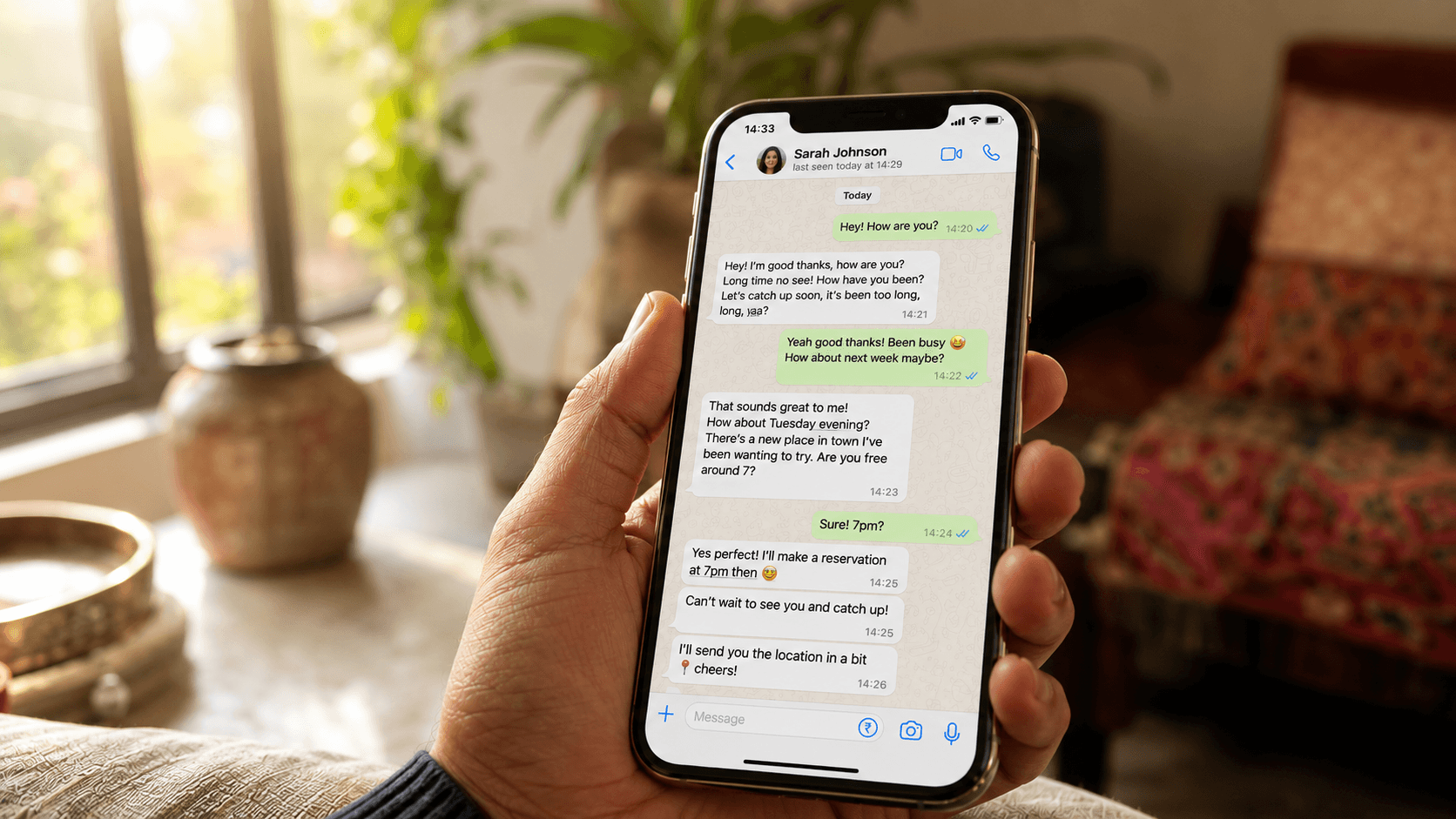
Every conversation you have had is still there, somewhere in that inbox. Here is how to bring it out.
Most people have years of their life stored in a WhatsApp inbox. Conversations with people they love, messages they have re-read dozens of times, threads that stretch back to a different version of themselves. But that archive is fragile in ways that are easy to ignore: devices break, accounts get locked out, apps lose data. The messages feel permanent until they are gone. Exporting your WhatsApp chat is the first step toward making sure that does not happen.
The good news is that WhatsApp has built-in export functionality that works on both iPhone and Android. The process takes less than two minutes, and once you have the file, you can upload it to Memreesh and have a preview of your chatbook in under a minute. This guide walks through the entire process, from opening the app to uploading the file.
Before you start
There are a few things worth knowing before you export. WhatsApp lets you choose whether to include media (photos and videos shared in the conversation) or export text only. For most chatbooks, text only is the right choice. It keeps the file small, makes the upload faster, and the Memreesh editor actually handles the layout better with clean text data. You can always add specific photos manually inside the editor later.
You also do not need to export the entire conversation history. If you have five years of messages with someone, you might only want the last two years, or a specific period that meant something. The Memreesh editor has a date range filter, so even if you export everything, you can narrow it down at the upload stage.
💡
Good to Know
WhatsApp limits exports to 40,000 messages with media or 100,000 messages without. If your conversation is longer than that, you will need to export in sections. The Memreesh editor can combine multiple files from the same conversation.
·
·
·
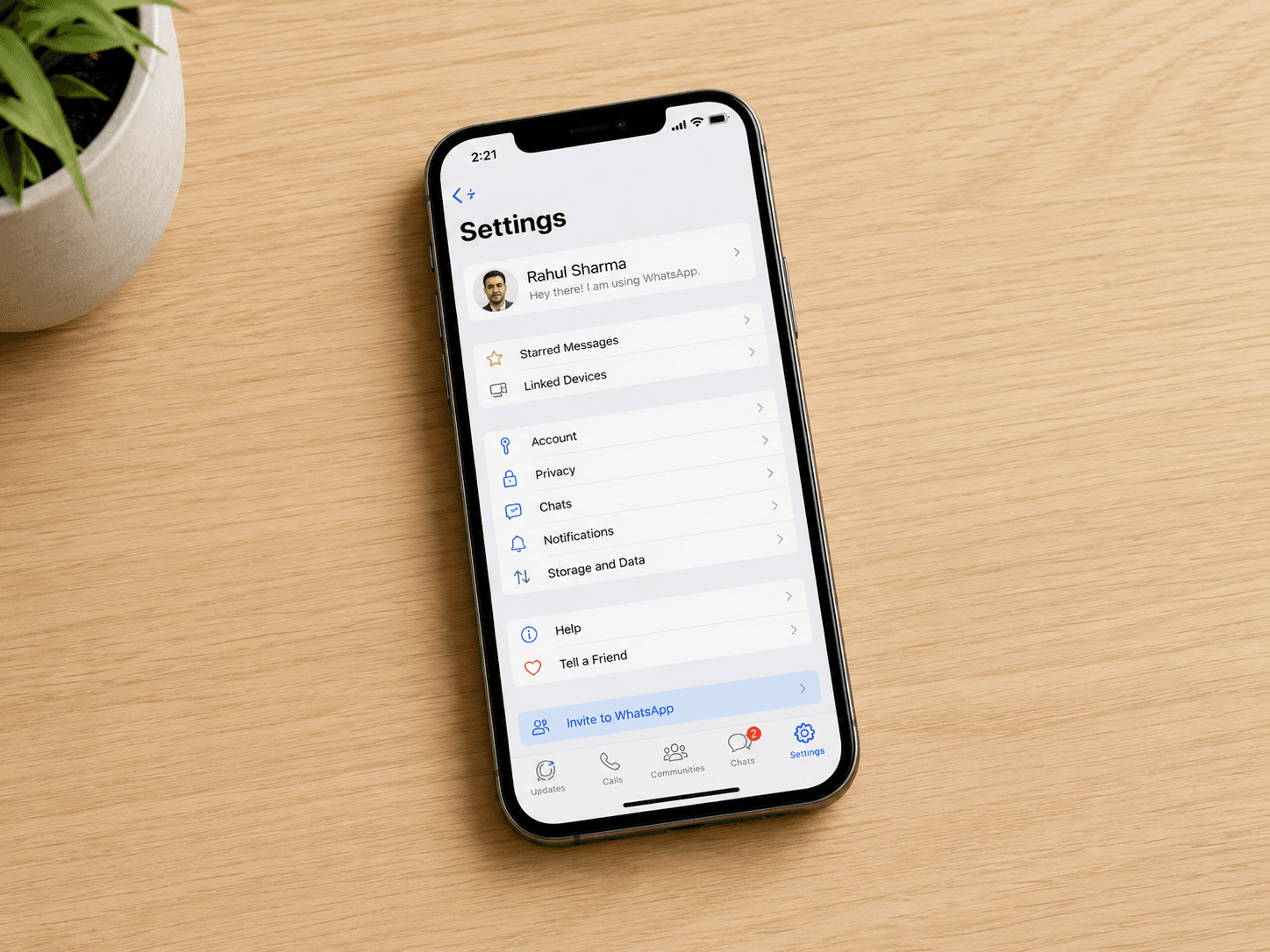
Exporting on iPhone
Apple's WhatsApp implementation makes the export option relatively easy to find, though it is not on the main chat screen. You access it through the contact or group info page.
1
Open WhatsApp and navigate to the conversation
Find the chat you want to export, whether it is a one-on-one conversation or a group.
2
Tap the contact or group name at the top
This opens the info screen for that conversation. On a one-on-one chat you will see the contact's profile. On a group you will see the group details.
3
Scroll all the way to the bottom
Keep scrolling past the media, links, and documents sections. Right at the bottom you will find the "Export Chat" option.
4
Tap Export Chat
WhatsApp will ask whether you want to include media or export without media. Choose "Without Media" for a clean, lightweight file.
5
Choose where to save the file
A share sheet will appear. You can email it to yourself, save it to the Files app, or send it to Notes. The easiest option is usually to save to Files or email.
📦
What you will get
WhatsApp on iPhone gives you a .zip file. Inside it is a .txt file with all the messages in plain text, timestamped and labeled with sender names. This is exactly the format Memreesh expects. You do not need to unzip it — just upload the .zip file directly.
·
·
·
Exporting on Android
Android follows a slightly different path to the same export feature. The option lives in the conversation's overflow menu rather than the contact info screen.
1
Open WhatsApp and go to the conversation
Navigate to the specific chat you want to export.
2
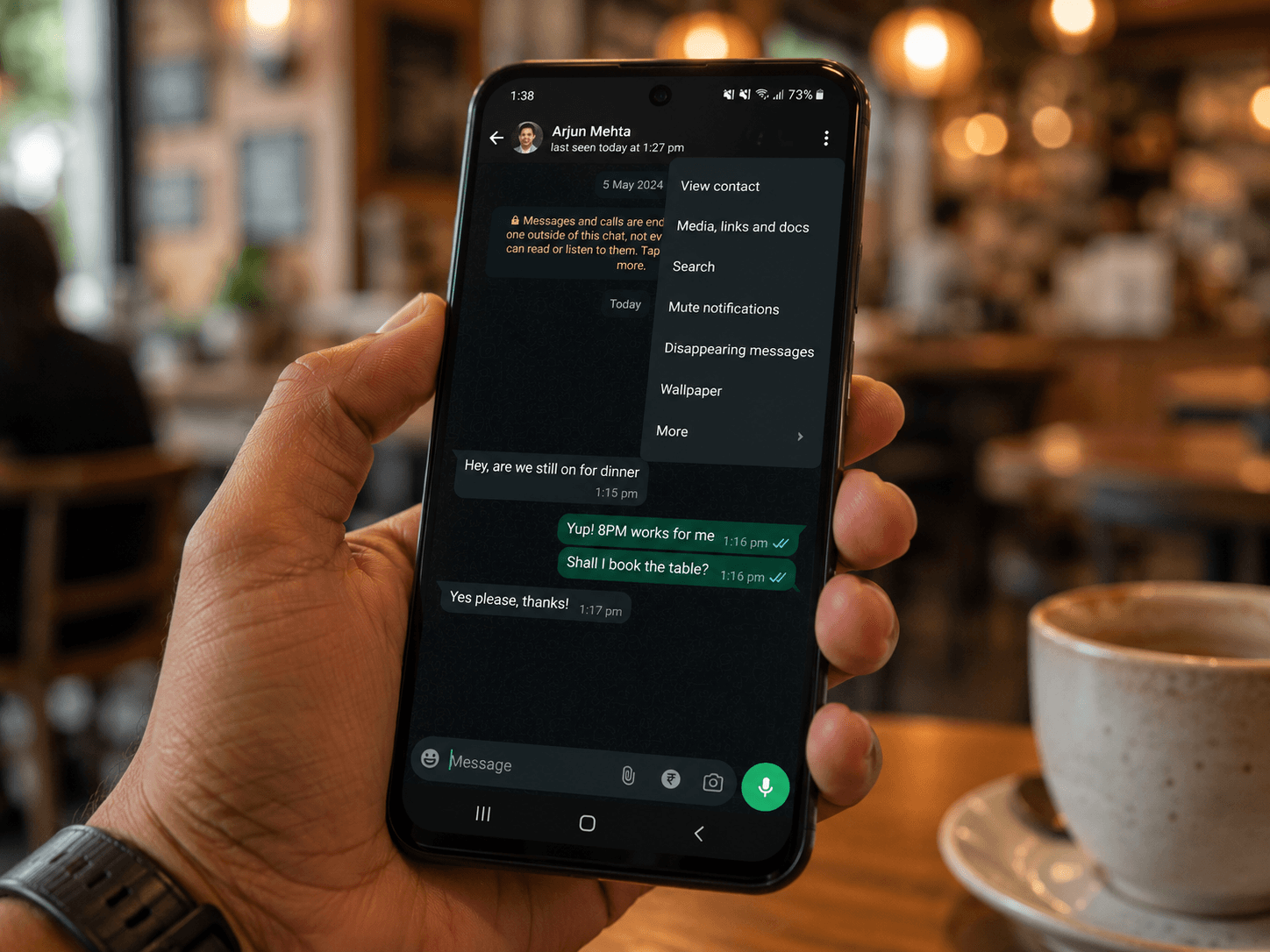
Tap the three dots in the top right corner
This opens the overflow menu for the conversation. The options here are different from the main WhatsApp menu.
3
Tap "More"
Inside the overflow menu you will see a "More" option. Tap it to reveal additional actions including the export option.
4
Tap "Export Chat"
Just like on iPhone, you will be asked whether to include media. Choose "Without Media."
5
Save or share the file
Android will let you save to your device, email it, or upload it to Google Drive. Save it somewhere you can find it easily.
·
·
·
What the exported file looks like
Once you open the .zip and look at the .txt file inside, it might seem a little raw. Every message is on its own line, formatted something like this:
[14/03/2024, 9:02 AM] Ananya: Good morning 🌞
[14/03/2024, 9:05 AM] You: Morning! How did the interview go?
[14/03/2024, 9:07 AM] Ananya: I think it went really well actually
[14/03/2024, 9:07 AM] Ananya: They asked about the project we did in December
[14/03/2024, 9:09 AM] You: That's amazing. You've worked so hard for this.
The format looks basic but it contains everything Memreesh needs: timestamps, sender names, and the message content. The editor parses this automatically and builds a visual layout from it. You will never have to look at the raw text file yourself.
What looks like a wall of plain text is actually a complete record of a relationship. Every timestamp is a moment. Every line is a real thing someone said.
·
·
·
Uploading to Memreesh
With your file saved, head to Memreesh and start a new chatbook. You will be asked to select your platform. Choose WhatsApp. Then upload either the .zip file directly or the .txt file inside it. Both work.
The editor will process the file in a few seconds and show you a live preview of your chatbook layout. From here you can: choose a date range to narrow the conversation, select a theme and colour palette, reorder or remove sections, and add a cover page with a title and photo. Once you are happy with the preview, you can download a PDF immediately or place an order for a printed book.
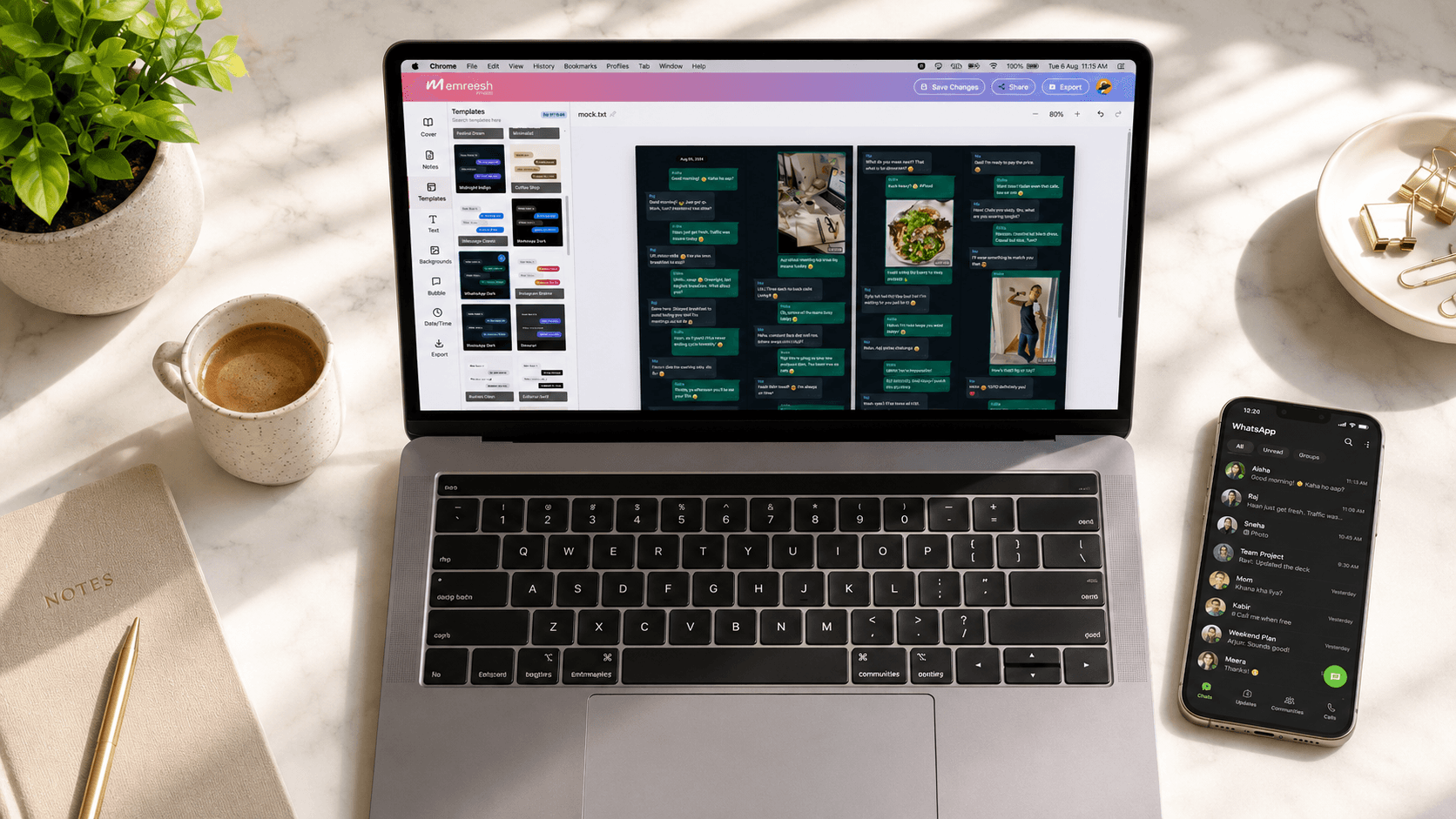
The Memreesh editor processes your chat file and generates a live preview automatically.
·
·
·
Media or text only — which should you choose?
This is the question most people have when they first export. The short answer is: start with text only, then add photos manually inside the editor if you want them.
When you include media in the export, WhatsApp packages every photo and video shared in the conversation into the .zip file. For long conversations this can easily be hundreds of megabytes or more. The upload takes longer, the file is harder to manage, and often the photos from a years-long conversation are things like forwarded memes and random screenshots rather than meaningful images.
The Memreesh editor lets you add specific photos to any page manually after the fact. So the better workflow is to export text only, let the editor build the layout, and then go through and add the handful of photos that actually matter — the ones you want in the book specifically.
⚡
Quick Tip
If you want certain photos in the chatbook but are not sure which ones, do a separate media export just to get the photos folder. Open it on your computer and pick the ones worth including before you upload anything to Memreesh.
·
·
·
Troubleshooting
A few issues come up fairly regularly. Here are the ones we see most often and what to do about them.
I don't see the Export Chat option on my iPhone
Make sure you are tapping the contact name at the very top of the chat screen, not the back arrow. On some versions of WhatsApp the option appears lower on the info screen — scroll all the way down past the media galleries.
The exported file is enormous
You probably included media. Go back and re-export choosing 'Without Media.' For very long conversations even the text-only file can be large, but Memreesh handles files up to 50MB without issues.
My messages are showing in the wrong language or with strange characters
This happens occasionally with certain languages or emoji-heavy chats. Make sure you are uploading the original .zip file rather than opening the .txt and re-saving it, which can change the encoding.
The export only goes back a certain number of months
WhatsApp may not have older messages stored on your device, especially if you changed phones without transferring your chat history. Check your iCloud or Google Drive backup settings — if backups are enabled, older messages may be restorable.
I have a group chat with hundreds of people. Will this work?
Yes. Large group chats work fine. The editor will show all sender names and you will be able to filter by date range to focus on specific periods rather than the entire history.
·
·
·
Frequently asked questions
Is it safe to upload my chat to Memreesh?
Yes. Your chat data is encrypted in transit and at rest. It is only used to generate your chatbook layout and is never shared with third parties. You can delete it from our servers at any time after your chatbook is created.
Can I export a chat that I was not the one who started?
Yes. Any participant in a WhatsApp conversation can export it. You do not need to be the group admin or the person who sent the first message.
Can I create a chatbook from a WhatsApp group with multiple people?
Absolutely. Group chats are fully supported. Each message will be attributed to the correct sender, and the layout adapts to show multiple speakers clearly.
What if I want to export chats from multiple platforms into one book?
Memreesh supports combining chats from different platforms into a single chatbook. Export each one separately and then upload them together when creating your project.
Share this article
Written by
Priya Sharma
Co-Founder, Design Lead
Continue reading
Get new articles
Guides, gift ideas, and stories. Every two weeks.
What people are making
Real chatbooks, real memories
Create yours
Ananya & Rohan
4 years of WhatsApp · Wedding gift
The Mehta Family
Family group chat · 2020–2024
Shreya & Priya
10 years of friendship · Birthday gift
Class of 2026
IIT Kanpur · 2022–2026
